
Sooner or later, every Shopify store runs a discount. A welcome code for new subscribers, 20% off for Black Friday, or a clearance section for stock that has been sitting too long.
Creating one is not the hard part. Shopify has a Discounts section, you fill in a few fields, and the discount works.
The harder questions come before and after that. Which kind of discount fits the offer you have in mind. How to aim it at the right products and the right people. What the platform will let you do, and where it stops. How to make sure customers actually notice the offer. And whether the promotion made money once it was over.
This guide covers all of that, roughly in the order the questions come up.
The three ways to give a discount in Shopify
Before anything else, it helps to know that Shopify gives you three different ways to lower what a customer pays. Each one is set up in a different place and behaves differently, so choosing the right one early saves work later.
A discount code. The customer enters a code, or opens a link that carries the code, and the amount comes off in the cart and at checkout. The product keeps its normal price everywhere else in the store. Use a code when the offer is only for some people, or when you want to know where an order came from: give each channel its own code — one in the newsletter, another on Instagram, a third for a partner — and the orders report tells you which code people used.
An automatic discount. Same thing, without the code. Shopify applies the discount by itself as soon as the cart meets the conditions you set. Use this for offers that are open to everyone, such as free shipping over a certain amount.
A price change. Instead of discounting at checkout, you lower the product’s own price and put the old price in its compare-at field. The storefront then shows the old price crossed out, usually with a sale badge. Use this when the offer is the point of the visit — a seasonal sale, a clearance, a category that should look reduced.
Here is the practical difference:
| Discount code | Automatic discount | Price change | |
|---|---|---|---|
| Customer has to do something | Yes, enter a code | No | No |
| Visible on product and collection pages | No | No | Yes, as a crossed-out price |
| Visible as a discount in cart and checkout | Yes | Yes | No, the customer sees one price |
| Can be limited to specific customers | Yes | Yes | No |
| Product price in Shopify | Unchanged | Unchanged | Changed |
A quick way to choose: if the discount needs to be visible before the cart, you need a price change. If it needs to be earned or targeted, you need a code or an automatic discount. Many promotions use both — a sale on the storefront, plus a code for a specific list of customers.
The three are separate systems, and that has consequences once you run more than one at a time. We come back to that in the section on when discounts combine.
Types of discounts you can offer
Within codes and automatic discounts, Shopify gives you four kinds of offer. Each one behaves differently as the cart grows, which is the main thing to think about when choosing.
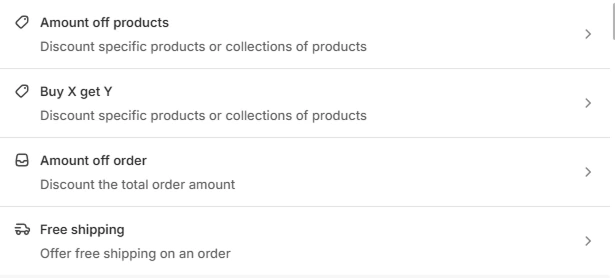
Percentage off. The classic 10% or 20%. Simple to communicate and easy for customers to judge. The thing to watch is that the amount grows with the cart: 20% off is a few dollars on a small order and a serious sum on a large one. If your catalogue has a wide price range, a percentage code can cost far more than you planned.
A fixed amount off. $10 off, $25 off. The cost is predictable, which makes it the safer choice for a wide catalogue. It also has a side effect: because the saving is a bigger share of a small order, it pushes customers towards the cheaper end of your range. Add a minimum order amount if you do not want that effect.
Free shipping. This one still costs real money — you pay the carrier either way. What makes it easier to control than the others is that Shopify lets you set a minimum order amount and exclude the expensive rates, so you are not covering overnight delivery to another country. It is also the simplest offer to explain in one line, which matters in a banner or an email subject.
Buy X get Y. The customer buys something and receives another item, or a discount on it. This includes a free gift, which is the version most small stores use.
You can also build a threshold offer out of any of these: an order discount with a minimum purchase amount. That is the “spend $75, get $10 off” pattern, and it is the standard tool for lifting an average order.
One rule of thumb worth keeping. Percentage discounts suit stores where prices are similar across the catalogue. Fixed amounts and thresholds suit stores where prices vary a lot. Choosing the wrong one is the most common way a promotion costs more than the store earns back.
How to create a discount code in Shopify
The flow is the same for a code and an automatic discount, with one difference: a code needs a code, and an automatic discount needs a name the customer will see.
Go to Discounts in your admin and create a new discount. Choose the type of offer first — amount off products, amount off order, free shipping, or buy X get Y — because that choice decides the rest of the screen and cannot be changed once the discount is saved. Then set the value, choose which products the discount covers, add a minimum purchase if the offer needs one, choose who is eligible, set the usage limits, decide what the discount may combine with, and give the discount a start date and an end date. Save the discount and test it in a private browser window before the code goes anywhere.
Every one of those fields decides something the code will do weeks later, and a few of them behave differently from the way the labels read. How to create a discount code in Shopify, step by step walks through the screen field by field, with the settings that cost stores money and the checks worth running before a code goes out.
Who the discount applies to: products and customers
Every discount answers two questions: which products, and which customers. Shopify’s answers are narrower than most stores expect, so this is where a simple promotion often becomes complicated.
Which products a discount can cover
A discount can apply to the whole order, to specific collections, or to specific products and variants. That is the complete list.
What is not there matters more than what is. You cannot aim a native Shopify discount at a vendor, a product type, or a tag. If your catalogue is organised by any of those — and most catalogues with more than a few hundred products are — you have three options:
- Build a collection for the promotion. A smart collection with the right conditions, used only as the discount’s target. This works well and costs nothing. The drawback is that you accumulate collections that exist for no reason other than an old promotion.
- List the products by hand. Fine for a handful of items. Shopify stops you at 100 specific products and variants per code, so this does not scale.
- Use an app that can target the fields your catalogue already uses. This is the only option that does not create new work every time the catalogue changes. Our review of the best Shopify discount apps covers the ones that can do it.
There is one more thing to know about collections as targets. A collection is evaluated when the discount is applied, so products that join the collection later are covered automatically. That is true for codes and automatic discounts. It is not true for a sale built by changing prices, which is covered further down.
Which customers can use it
A discount can be open to everyone, limited to specific customers, or limited to a customer segment.
Segments are how the common targeting jobs get done:
- New customers only. A segment of customers who have placed no orders.
- Lapsed customers. A segment based on the date of the last order.
- Your best customers. A segment based on the number of orders or the amount spent.
There is one thing to plan for. A discount limited to specific customers or to a segment applies only when Shopify can tell who the shopper is, which means the customer has to be signed in to the account you targeted. A guest checkout is anonymous, so the discount is refused, and the message the customer sees does not explain the reason. If you send a targeted offer, make signing in part of the message, and expect a few support questions anyway. The one-use-per-customer limit is counted differently — Shopify tracks that one by email address or phone number rather than by account, so a guest checkout still counts against it.
If you already keep customer tags — a VIP tag, a wholesale tag — Alpha Sale can use them directly, which saves rebuilding the same audience as a segment.
Discount limits, minimums and usage rules
These are the settings that turn a discount from an open invitation into a controlled offer. They are also where Shopify’s hard limits live, and a few of them are easy to hit without warning.
Usage limits. You can cap the total number of times a code is used, and limit it to one use per customer, which Shopify counts by email address or phone number. Set both on any code that goes out publicly. Codes travel: they end up on coupon sites within days of a large campaign, and a total cap is what stops a leaked code from becoming a real problem.
Minimum purchase. Either a minimum amount or a minimum number of items. One detail is easy to miss: if the discount is limited to a product or a collection, only those items count towards the minimum, not everything in the cart.
Dates. Every discount has a start date and an optional end date. Set the end date. See above.
No maximum discount. Shopify has no way to cap what a percentage discount takes. A 30% code on a $2,000 order gives away $600, and there is no setting that stops it at $100. For most stores this never comes up, because carts are similar in size. For stores selling both a $20 accessory and a $2,000 item, it is a real risk, and the usual workaround is to use a fixed amount instead of a percentage. Alpha Sale can set the cap directly — 30% off, up to $100 — if you want to keep the percentage.
Then there are the platform limits. None of these limits are announced anywhere you would look before hitting them:
- A single discount code can target up to 100 specific customers, products and variants. Past that, Shopify shows an error. Collections are not counted this way, which is why a collection is the right target for a large group of products.
- A store can have 25 active automatic discounts at a time, and that count includes automatic discounts created by your apps. If you run several apps that create discounts, you can reach this limit without having created 25 yourself.
- A customer can use up to 5 product or order discount codes plus 1 shipping code on the same order — and only if those discounts are set to apply together.
- A store can create 20 million unique codes over its lifetime, so bulk codes for a campaign are never the constraint.
How to run a sale with compare-at prices
Everything above happens at the cart. A sale that customers can see while browsing works differently. This route also carries the most risk of the three, so it is worth going through carefully.
Every Shopify product has two price fields. Price is what the customer pays. Compare-at price is the higher, earlier price. When compare-at is filled in and is higher than the price, the storefront shows it crossed out, and most themes add a sale badge.
So a sale is made by moving numbers: the old price goes into compare-at, the new price goes into price.
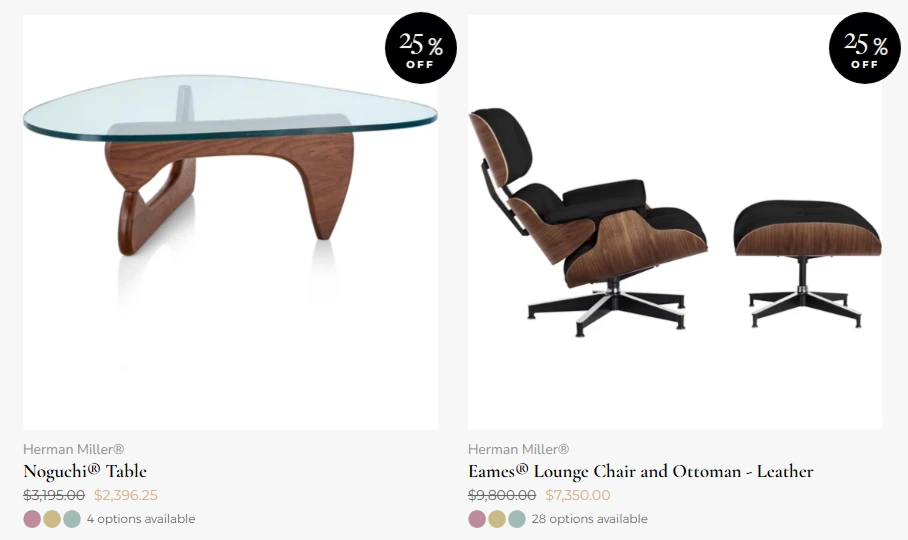
A price change is the only route visible before the cart. Product pages, collection pages, search results, POS and other sales channels all show the reduced price.
Two things to plan for.
Ending the sale is harder than starting it. Changing the prices is quick — the bulk editor handles hundreds of products at once, and so does the reverse edit. The problem is knowing what to change them back to. Shopify does not keep the price a product had before the sale, so unless you exported your prices to a CSV first, there is nothing to restore from. And if you do restore from that export, you overwrite every price a supplier feed or a colleague changed while the sale was running. That cleanup is where most of the damage from a price-based sale happens.
Anything else that edits prices will overwrite your sale. Dropshipping apps, inventory tools and price imports all write to the same field. If your prices are managed by another system, a price-based sale will fight it, and a discount code or an automatic discount is the safer choice.
A seasonal sale has more to it than the prices — the stock behind the offer, the test order, the banner, and the clean-up afterwards. Our BFCM checklist for Shopify stores puts that work in the order it has to happen. For a short sale of a day or two, how to run a flash sale on Shopify goes through the same steps in order.
Where customers see the discount and enter the code
A discount nobody sees does nothing. This part gets less attention than it deserves, so here is where each type of offer actually appears.
On product and collection pages. A price change is the only offer a customer can see while browsing. Shopify shows the compare-at price crossed out next to the new price, and most themes add a sale badge. Codes and automatic discounts appear nowhere on these pages — nothing tells a visitor that a code exists, which is why a code needs a banner, an email or an ad to do any work at all. The crossed-out price and the badge are drawn by your theme, so if either one looks wrong, the theme is where to look, not the discount.
In the cart and at checkout. Codes and automatic discounts appear here as a line with the name you gave them, and the customer sees the amount coming off.
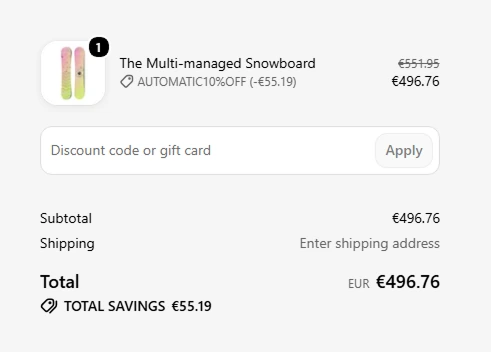
Where the customer types the code. Codes are entered at checkout, in the field Shopify also uses for gift cards.
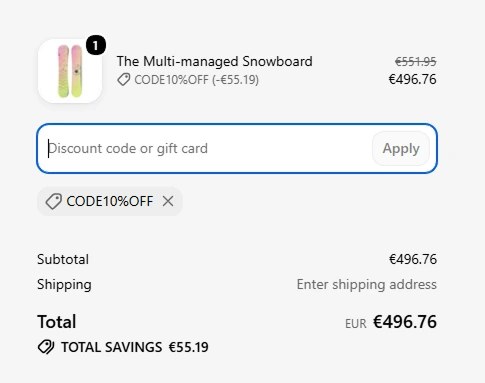
The field is not always there. Shopify hides it when the store has no active discount codes at all, when the checkout came from a draft order invoice, when the customer is in a Shop Pay checkout without being signed in, or when an installed app has removed it. On standard Shopify plans there is no setting to hide it deliberately.
Through a link, which is usually better than a code. Shopify can generate a shareable link or a QR code for any discount. The customer opens it and the discount is saved to their cart automatically, with no typing. The discount stays on the cart until the customer removes it or clears their cookies. For email, ads and influencer campaigns, send the link and mention the code rather than the other way round — every customer who mistypes a code is a customer who either writes to your support or leaves.
In your shop, if you have one. All three work in Shopify POS. A price change is there already, because POS reads the same product price as the online store, so a sale needs no extra setup to reach the counter. A discount code is entered by staff in the POS app, exactly as a customer would enter the code online.
Across the whole store. An announcement bar is the usual way to tell visitors a sale is running. Alpha Sale can attach a bar to a campaign, so the bar appears while the campaign runs and disappears when the campaign ends. That removes the most common form of stale promotion: a banner still advertising a sale that finished last week.
When Shopify discounts combine, and when they do not
Once you run more than one offer at a time, you need to know which ones combine. Shopify sorts every discount into one of three classes: product, order and shipping. Whether two discounts apply together depends on those classes, and on what you allowed when you created each of them.
The rules in practice:
- A product discount can apply together with an order discount.
- Either of them can apply together with a shipping discount.
- Two shipping discounts never apply to the same order.
- Combination has to be allowed on both discounts. If either one forbids it, only a single discount applies.
The order matters for the amount. Product discounts go first, on the individual items. Order discounts apply to what is left. Shipping discounts come last. All of this happens on the subtotal, before tax. A $100 product with a 20% product discount becomes $80; a $10 order discount brings it to $70; tax is calculated on $70.
And then there is the case that is not covered by any of these settings.
A sale price is not a discount, as far as Shopify is concerned. If you built a sale by changing prices, the discount engine sees the reduced price as the product’s normal price. A code will apply on top of it, even a code you set not to combine with anything, because Shopify does not see a second discount there at all.
This is the trap behind most unplanned double discounts, and it usually shows up after a big promotion, when the margin report does not match the plan. Shopify has no setting for it. The workarounds are to keep sale products out of the code’s product list, which runs into the 100-product limit, or to build a smart collection of products whose compare-at price is empty and point your codes at that.
If you would rather the rule held on its own, an app can enforce it.
Discount strategies that actually make money
Everything so far is mechanics. This part is about which offers are worth running at all. These patterns tend to earn back what they cost in small and medium stores.
A welcome offer for a new subscriber. A code in exchange for an email address. You are not really buying the order — you are buying a contact you can reach for free later. Keep it modest, use a fixed amount rather than a percentage, and set one use per customer.
A threshold that lifts the average order. “Spend $75, get $10 off” or free shipping over a set amount. Set the threshold above your current average order value, but not far above — a common starting point is 15% to 30% higher. Set the threshold too high and nobody reaches it. Set it below your average order value and you are paying for orders that were already going to happen.
A win-back for customers who stopped ordering. A segment based on the date of the last order, and a code sent only to them. This is one of the few places where a generous discount is easy to justify, because the alternative is a customer who never comes back.
A reward for your best customers. A segment or a tag, and an offer that is not available publicly. This works better as an occasional gift than as a permanent status, which starts to feel like your real prices are lower.
Clearance for stock that is not moving. Here a price change is the right tool, because the point is that the reduction is visible while people browse. Deep enough to actually clear the stock, with an end date, and ideally in its own collection.
Seasonal sales. Black Friday, end of season, a store anniversary. Plan the end as carefully as the start: the day after a sale is when prices have to go back, banners have to come down and codes have to be turned off.
When a discount is not worth running
Discounts are margin, and the amount is easy to underestimate.
Take a product at $100 that costs you $50. Your margin is $50. Take 20% off and you keep $30 — so to end the promotion with the same profit, you need 1.7 times the sales you were making before. At 30% off, you keep $20 and you need 2.5 times. Work this number out before the promotion, not after; it turns “did we sell more?” into a question with a right answer. Our guide to how deep a Black Friday discount should be runs the same calculation as a table across four margins, and adds the card fees, advertising and returns that sit underneath it.
Two more questions worth asking:
Would these people have bought anyway? A code sent to your most loyal customers, or a permanent banner offering 10% to everyone, mostly pays people who were already buying at full price. That is a rebate, not growth.
What does it teach? Regular, predictable sales teach customers to wait for the next one. If your store has a promotion every month, the full price stops being the real price. Fewer sales, with a clear end, protect what you charge for the rest of the year.
None of this means discounts are bad. It means a discount needs a job: clear old stock, win back a lost customer, lift an order over a threshold, buy an email address. A discount with no job is just a lower price.
How to measure whether a discount paid off
Shopify’s sales reports break orders down by discount, so you can see how many orders used each code and how much was given away. That is the starting point, not the answer.
Three things to look at.
Margin, not revenue. A promotion almost always increases revenue, because you sold things cheaper. Compare what you kept: units sold times margin per unit, against the same figure for a normal period of the same length.
The comparison period. Use the weeks before the promotion, and the same period last year if you have it. A sale in December will beat a normal week in November for reasons that have nothing to do with the offer.
Where the orders came from. This is the argument for codes over automatic discounts when you are testing something. Give each channel its own code: one for the newsletter, one for Instagram, one for a partner. The report then shows which channel worked. An automatic discount tells you only that people bought.
One number is worth writing down before you launch: the units you need to sell to break even, from the calculation above. Comparing that to what actually happened is the fastest way to learn what your customers respond to.
Why your Shopify discount is not applying
A discount that fails at the cart and a sale price that quietly disappears are two different problems with two different lists of causes. Start with the list that matches what you built.
A code or automatic discount is not applying
- The discount has not started, or it has ended. Check the dates, and the store’s time zone.
- The cart does not meet the minimum. If the discount is limited to certain products, only those products count towards the minimum.
- Nothing in the cart matches. A product discount aimed at a collection does nothing for a cart without products from that collection.
- The customer is not signed in. Discounts limited to specific customers or a segment need Shopify to recognise the shopper, which a guest checkout does not allow.
- Another discount is already applied, and one of the two does not allow combination.
- The 25 automatic discount limit is full, so the newest automatic discount never became active.
- There is a gift card in the cart, and the discount does not apply to gift cards.
If everything looks right in the admin and the discount still does nothing, place a test order. The message at checkout usually says more than the settings screen does.
A sale price is missing or wrong
- The old price came back on its own. Something else edited prices while the sale was running: an import, a supplier feed, an app, or a person. Shopify writes the last change and keeps no record of the sale price.
- New products in the collection are still at full price. A price-based sale is applied at the moment it runs, not continuously. Products that join a targeted collection afterwards need the sale to be applied to them again.
- The discount is wrong in one country. If you use Markets with price overrides in a catalog, that fixed price wins over a percentage change. Either clear the overrides, or use a market price adjustment instead.
- The crossed-out price is not showing in Europe. See the note on the European Price Indication Directive above.
Shopify discounts FAQ
How do I create a discount code in Shopify? Go to Discounts in your admin, create a new discount, and choose the type of offer: amount off products, amount off order, free shipping, or buy X get Y. Choose the discount code method, write the code, set the value and what it applies to, then add any limits — minimum purchase, customer eligibility, usage limits and dates. Save the discount and test it in a private browser window before sending the code out. There is a step-by-step walkthrough of the whole screen with the details behind each field.
Are Shopify discount codes case sensitive?
No. Shopify matches SUMMER10 and summer10 as the same code, so a customer typing in lower case still gets the discount. It is still worth avoiding characters that are easy to mistype, such as the letter O next to the digit 0.
Where does the customer enter a discount code? At checkout, in the field for discount codes and gift cards. Some themes also add a discount field to the cart page, but many do not. You can avoid the typing entirely by sharing the discount as a link or a QR code, which applies it to the customer’s cart automatically.
Why is the discount code field missing at checkout? Shopify hides it when the store has no active discount codes, when the checkout came from a draft order invoice, when the customer is using Shop Pay without being signed in, or when an installed app has removed it. On standard Shopify plans there is no setting to hide the field yourself.
Can a customer use two discount codes on one order? Yes, within limits. Up to 5 product or order discount codes plus 1 shipping code can apply to the same order, and only if those discounts are set to apply together. Two shipping discounts never combine. If either discount does not allow combination, only one applies.
How many discounts can a Shopify store have? There is no practical limit on discount codes — a store can create up to 20 million over its lifetime. Active automatic discounts are capped at 25 per store, and that count includes automatic discounts created by apps.
Can I set a maximum amount on a percentage discount? Not in Shopify. A 25% code takes 25% of whatever the cart is worth. If you need a cap — 25% off, up to $50 — you need an app, or you use a fixed amount instead of a percentage.
How do I make a discount for new customers only? Build a customer segment of people who have placed no orders, and set that segment as the discount’s audience. The customer has to be signed in for Shopify to recognise them, so include that in the message you send.
Will a discount code apply on top of a sale price? Yes, by default. A sale made with compare-at prices is not a discount as far as Shopify is concerned, so a code applies on top of the reduced price, even when it is set not to combine with other discounts. To prevent it, keep sale products out of the code’s product list, or use an app that can exclude products already on sale.
What happens to my prices when a sale ends? Nothing, unless you change them back. Shopify does not store the previous price, so ending a sale built on compare-at prices means editing every product again. If your catalogue is too large for that, run the sale as a campaign in an app that puts the original prices back when the campaign ends.
Discounts are the easiest thing in Shopify to set up and the easiest to lose track of. Most of the work is not in creating a discount. The work is in choosing the right kind, aiming that discount at the right products and people, making sure customers notice the offer, and knowing when to stop.
If you want codes with conditions Shopify does not offer, sales that end without a cleanup afterwards, and no coupons landing on top of your clearance prices, Alpha Sale handles all three. There is a free plan, which is enough to try it on your next promotion.