
A flash sale is a short sale on a few products, usually for a day or less. To run a flash sale on Shopify, you lower the prices so customers see the old price crossed out, tell your customers the sale has started, and put the prices back when it ends.
This guide covers the four steps in order: planning the sale, setting up the prices in Shopify, announcing the sale, and closing it.
What makes a sale a flash sale
A flash sale is shorter than an ordinary sale, and the end time is part of the offer. Shopify’s own guide puts the usual length at hours, not weeks: “Most flash sales last between two and 36 hours” (Shopify).
A short sale needs less preparation than Black Friday, but a Shopify flash sale still has three parts: the offer, the announcement and the clean-up. The clean-up is the part people forget, and on Shopify it takes the most work.
Plan the flash sale
Pick a day and give customers a reason for it
Flash sale planning starts with the date.
Customers trust a deadline more when it has a reason they can see. A study in the Journal of Marketing Research found that online “limited time” offers do not reliably sell better than the same offers without a deadline, and that a reason from outside the shop — a birthday, a change of season — makes a positive effect more likely (Hmurovic, Lamberton and Goldsmith, 2023).
So tie the sale to something real: the store’s anniversary, the end of a season, the first cold weekend, a restock of a popular product.
For the time of day, look at when your orders usually come in and when your emails get opened. Shopify’s guide gives no standard timetable; an expert quoted there says the schedule “is going to depend on your product and target customer”. If you have no data of your own yet, use Omnisend’s study of about 26 billion emails as a starting point (Omnisend, 2026). Emails got the most clicks between 7 and 8 AM and again at 4 PM. Friday had the highest conversion rate of the week, and Friday at 7 AM was the best single time slot. So a flash sale that opens on a Friday morning, with the first email at 7 AM and a reminder at 4 PM, is a good default.
Put products with good margin and enough stock on sale
A flash sale works best on products that can lose part of their price and still earn money, and that you have enough of to last the whole sale. A product that sells out in the first hour leaves the rest of the sale with nothing to offer.
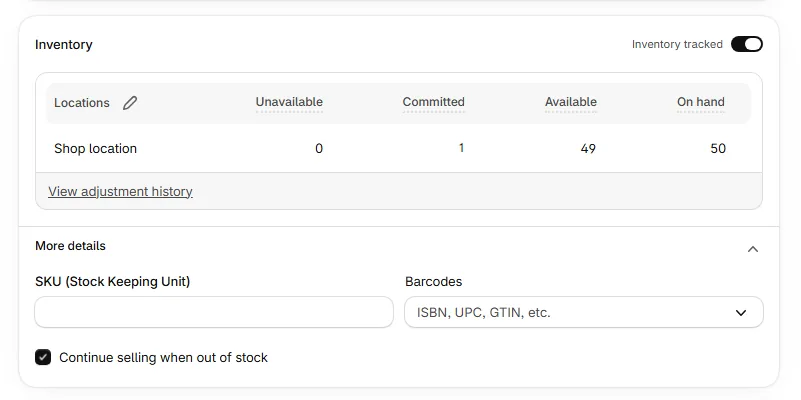
Open each product, find the Inventory card and open More details. If Continue selling when out of stock is ticked, customers can keep buying after the stock reaches zero, so turn the setting off for the sale items.
Keep it short: decide how many hours it runs
If this is your first flash sale, 24 hours is a good length. That is long enough for everyone on your list to open the email, and short enough that the deadline still matters.
A sale of a few hours can work too, but only if most customers see your message in those hours. Keep very short sales for a list that opens your emails and texts quickly.
Choose one simple offer
Use one discount for everything in the sale, such as 20% off. Customers should understand the offer from the banner in a second.
A 20% flash sale takes $8 off a $40 product and $30 off a $150 one. Before you choose the percentage, check what each order still earns after the discount. Our article on how deep a sale discount should be works through that calculation step by step.
Set up the sale prices in Shopify
Customers recognise a sale by the crossed-out price. In Shopify, that price comes from the Compare-at price field. When compare-at is filled in and is higher than the price, the storefront shows it crossed out next to the new price, and most themes add a sale badge.
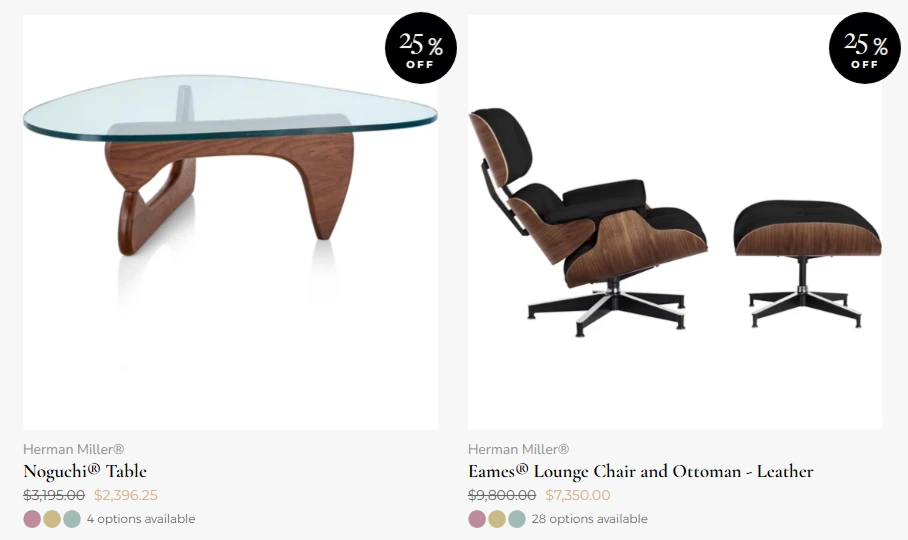
So a flash sale on Shopify is a price change. The old price goes into compare-at, and the sale price goes into price.
Export your prices before you change anything
Shopify does not keep the price a product had before the sale. After the sale, the export file is your only copy of the old prices.
- In your Shopify admin, go to Products and select the products that will be on sale.
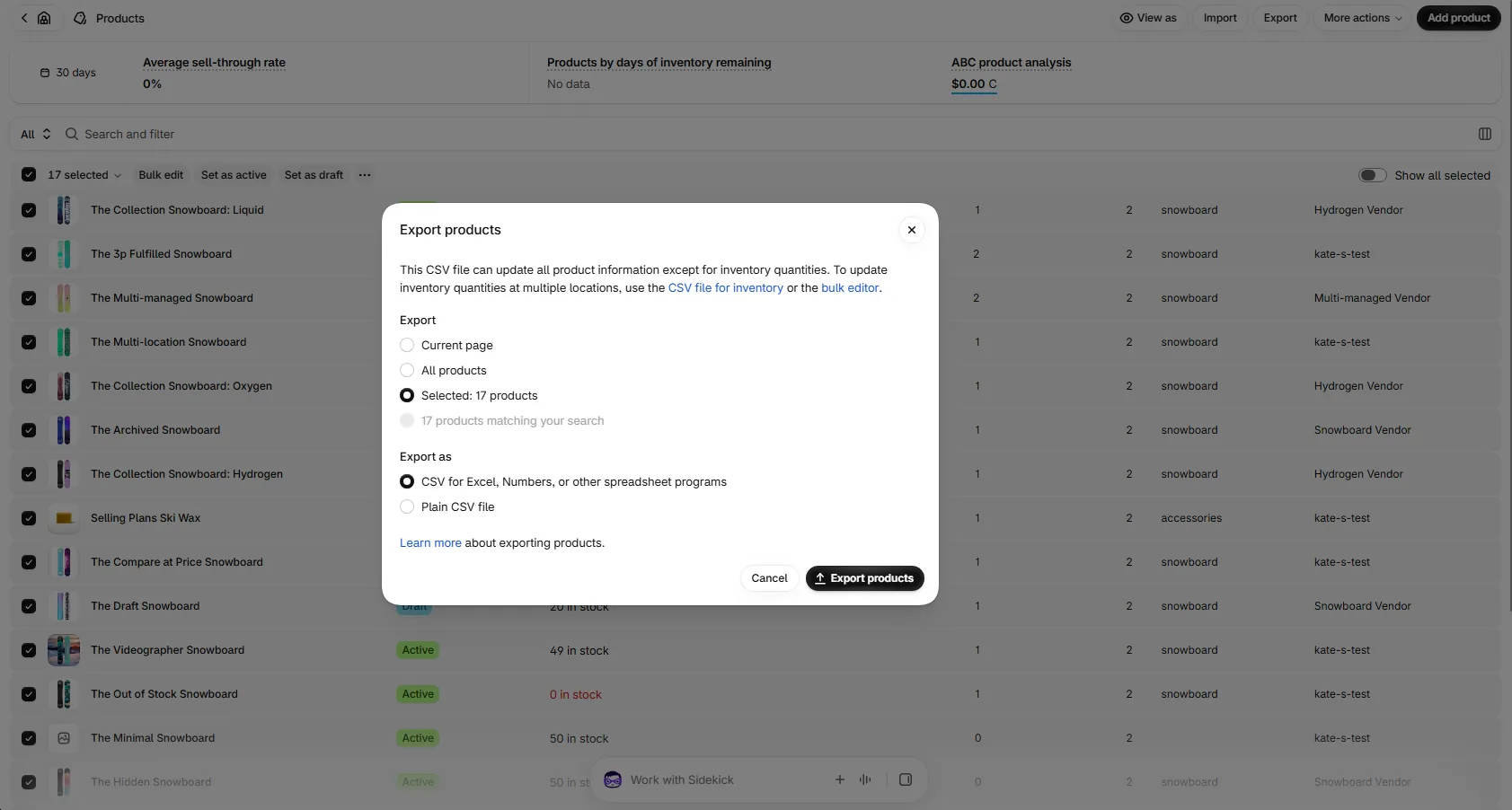
- Click Export, and under Export choose Selected. Shopify shows how many products you picked.
- Under Export as, choose CSV for Excel, Numbers, or other spreadsheet programs, and click Export products.
Save the file where you will find it when the sale ends.
Move the old price to compare-at and set the sale price
- On the Products page, select the products that will be on sale and click Bulk edit.
- Click Columns and add Compare-at price if you do not see it.
- For each product, type the current price into Compare-at price, and the sale price into Price. For 20% off a $40 product, compare-at is $40 and the price is $32.
- Click Save.
Shopify cannot schedule this change. The new prices go live when you click Save, so you make the change at the moment the sale opens. When the sale ends, you do the same edit again in reverse.
Check that the sale reaches every market
If you sell abroad with Shopify Markets, check two things.
Markets with fixed prices do not get the sale. A market can follow your main prices, or have its own fixed prices. Shopify’s help centre says that “fixed prices will override prices and compare-at prices set in your Shopify admin” (Shopify Help Center). So when you lower a price in the admin, customers in a fixed-price market still pay the full price. In Shopify, the sale prices for those markets have to be imported from a CSV file.
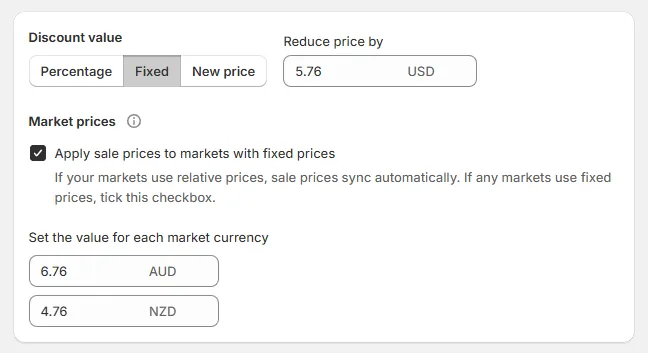
Alpha Sale can apply the same campaign to those markets. Tick Apply sale prices to markets with fixed prices and set the discount for each market currency, and the prices in those markets go back when the campaign ends too. The option is on the Ultimate plan; see how the price editor works with Markets.
Customers in the EEA may not see the crossed-out price. If your primary market is outside the European Economic Area, Shopify hides the compare-at prices it derived for EEA countries, to follow the European Price Indication Directive. You can turn that off in Settings, under Markets, in Preferences. If your primary market is already in the EEA, Shopify hides nothing, and your crossed-out prices show as normal.
Tell customers the flash sale is on
Email and text your list when the sale opens
Most flash sale marketing goes to people who already know your store: your email list and your text subscribers. Both reach them at the moment the sale opens, and neither costs you extra per click.
Send three emails:
- The day before, so customers know when to look.
- When the sale opens, with a link straight to the sale products.
- A few hours before it ends, to people who opened the first email and did not buy.
If you collect phone numbers, send the opening and the last-hours messages by text too, because those are the two moments when timing matters most. Texts also get clicked often: in Omnisend’s 2025 data, text campaigns had “a 12.39% average click-through rate across more than 246 million sends” (Omnisend, 2026). Post the sale on your social accounts when it opens as well.
Put a banner on every page
Customers who come from a search or an ad do not see your email, so the store itself has to say that a sale is on. The usual place is the announcement bar at the top of the page.
Your theme’s announcement bar has no schedule. You add the text in the theme editor, under Online Store, Edit theme, and Announcement bar, and you remove the text there when the sale ends. If you forget, the banner keeps announcing a sale that has already ended, and customers expect prices they will not get.
Open, watch and close the sale
Place a test order as soon as the sale opens
In the first minutes, buy one sale product yourself with your own card. Check that the product page shows the crossed-out price, that the cart and the checkout show the sale price, and that the banner is up. Then cancel the order and refund it.
Put the prices back and check ten products
If you changed the prices by hand, restore them from the file you exported. For a few products, type the old prices back in the bulk editor. For many products, import the file on the Products page and choose Overwrite products with matching handles.
Then open ten products and check the price and the compare-at price yourself. Take the text out of the announcement bar too.
If the sale ran as an Alpha Sale campaign, the prices and the banner have already gone back on their own. Open a few products anyway.
Write down the numbers for the next flash sale
Write down four numbers: orders, revenue, units sold and the average order value during the sale. Compare them with the same hours of an ordinary week. The next flash sale will be easier to plan when you know what the last one did.
Flash sale FAQ
How long should a flash sale last? Usually between a few hours and a day and a half. Shopify’s guide puts most flash sales at 2 to 36 hours. For a first flash sale, 24 hours gives everyone on your list time to see the email.
Can I schedule a sale price in Shopify? Not on most plans. A price change goes live when you save it and stays until you change it back. Shopify Plus stores can schedule price changes with Launchpad; on other plans you need an app such as Alpha Sale. Automatic discounts and discount codes do have start and end dates, but they do not show a crossed-out price on the product page.
How do I run a flash sale on Shopify without changing prices by hand? Use an app that changes the prices in bulk and changes them back on a schedule. In Alpha Sale, you choose the products, the discount, and the start and end time, and the app does both edits for you.
Should I use a discount code for a flash sale? You can, but customers have to know the code and type it at checkout — see how to create a discount code in Shopify. A price change shows the sale on every product page, so customers see it before they add anything to the cart. If you also have other codes running, such as a welcome code, a customer can use one on a product that is already on sale and get both discounts. A $40 product on sale for $32, with a 20% code on top, sells for $25.60. Alpha Sale can block codes on sale items so that this does not happen.
Why doesn’t the crossed-out price show on my store? Check three things: the compare-at price has to be higher than the price, your theme decides how the sale price and badge look, and customers in the EEA may not see compare-at prices if your primary market is outside it.
A flash sale is short, but the work does not end when the sale does. The prices, the banner and the stock all have to go back to normal, and on Shopify that is the part you do by hand. Plan the end of the sale when you plan the start, and each flash sale gets easier to run than the last.
If you would rather not be at the computer when the sale opens and closes, Alpha Sale schedules both and puts every price back on its own. There is a free plan to try it on your next flash sale, and you can also read the reviews on the Shopify App Store.