
You want to give your customers a code — WELCOME10, SPRING20, something they can type at checkout to get money off. Shopify keeps discount codes in one place, the Discounts section of your admin, and setting one up takes a few minutes on a single screen.
This guide goes through the screen one field at a time, with the things worth knowing about each field. Then it gives a complete example with real values, and a short check to run before you send the code to anybody.
How to create a discount code in Shopify
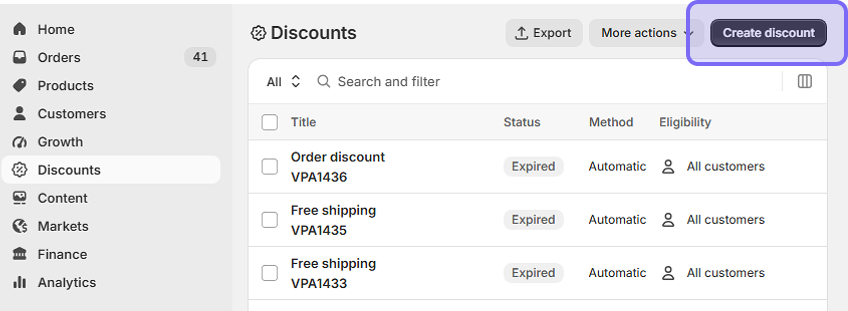
1. Open Discounts in your Shopify admin and click Create discount. Discounts sits in the left-hand menu, below Growth.
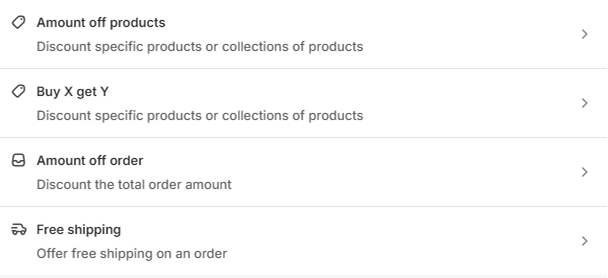
2. Choose the kind of offer. Shopify gives you four:
- Amount off products — a percentage or a sum off certain products.
- Amount off order — a percentage or a sum off the whole order.
- Buy X get Y — buy two, get the third one free, or at a discount.
- Free shipping — the customer pays for the products, not the delivery.
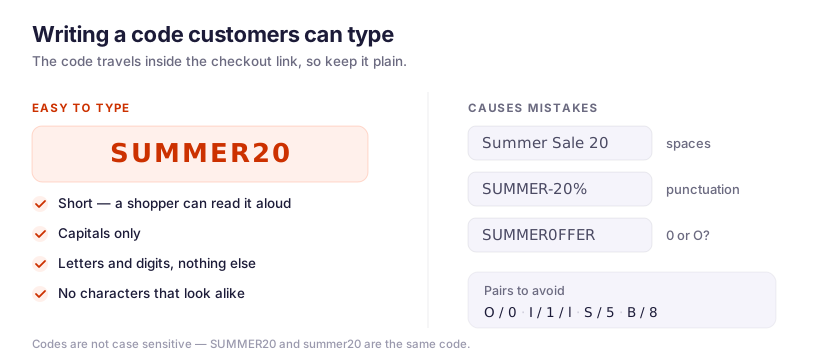
3. Choose Discount code as the method, and type your code. Shopify can make a random code for you with the Generate code button. If customers will have to type the code, write it yourself instead. Keep it short, in capitals, with no spaces and no punctuation, and skip characters that look alike, such as the letter O next to the digit 0. Shopify also asks you to avoid special characters, because the code has to travel inside the checkout link.
If the same offer goes out through more than one channel, make a separate code for each channel: NEWS20 in the newsletter, INSTA20 on Instagram, PARTNER20 for a partner. Duplicate the discount for each one and change only the code itself, so the offer stays identical. Your orders report then lists every order that arrived with each code, which is how you see how much each channel actually brought in. One code used everywhere gives you a single total and no way to split it.
4. Set the amount. Either a percentage (10% off) or a fixed sum ($10 off).
A percentage is easier to advertise, but the sum you give away grows with the order. A 20% code takes $6 off a $30 order and $180 off a $900 order. Shopify has no field for a maximum discount, so the percentage keeps its share however large the cart is.
A fixed sum does not have that problem. $10 off is $10 off, whatever the customer puts in the cart. If your prices vary a lot, a fixed sum is the safer choice — and if you want to keep the percentage and still cap what it costs you, an app can put a ceiling on it.
5. Choose what the discount applies to. All products, specific collections, or specific products. If the offer is for your whole store, leave it on all products and move on.
Shopify’s targeting stops there. You cannot point a native discount at a vendor, a product type or a tag, and one code holds at most 100 specific products, variants and customers together — past that, Shopify shows an error. For a large group of products, a collection is the way around both limits.
The other way around them is an app. Alpha Sale targets the fields your catalogue already uses — vendor, product type, tag, collection — with exclusions, so you do not have to build a collection for every promotion. Our complete guide to Shopify discounts goes through the other ways merchants work around these limits.
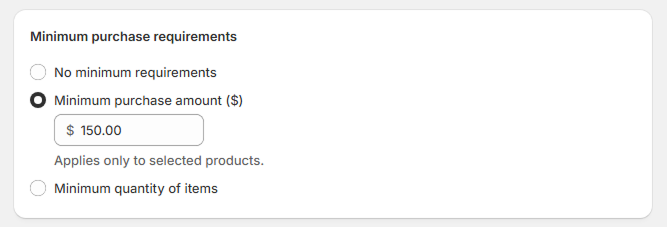
6. Add a minimum purchase, if the offer needs one. You can ask for a minimum amount (“spend $50”) or a minimum number of items. Leave it at none if anyone should be able to use the code.
7. Choose who can use the code. All customers is the usual answer. You can also pick particular customers, or a customer segment.

Segments are how you build the offers Shopify has no checkbox for. There is no “first order only” setting, for example: instead you create a segment of customers who have not placed an order yet, and choose that segment here. The same works for customers who have not bought in a year, or for the people who have spent the most.
If you do limit a code to particular customers or to a segment, remember one condition. Shopify has to know who is shopping to apply that code, and at a guest checkout it cannot. So the code works for customers who are signed in, and a guest sees a refusal without an explanation. Ask people to sign in when you send this kind of offer.
8. Set how many times the code can be used. Two checkboxes: a total number of uses across your store, and one use per customer. Tick both for a code you are sending out publicly. The total is what protects you if the code ends up on a coupon site.
9. Decide whether the code can be used with other discounts. The Combinations section asks which other kinds of discount this one may join. A new discount combines with nothing until you change that, and permission has to be given on both discounts, so ticking the box here is only half the job.
The Combinations section does not control everything, though. Say you put your summer collection on sale by lowering the prices and filling in the compare-at field. Shopify does not treat those reduced prices as a discount — to Shopify they are simply the products’ prices now. So a customer who adds a sale item and enters your SUMMER20 code gets 20% off the already reduced price, and the Combinations setting does not stop that, because Shopify sees only one discount in the cart.
10. Choose the dates. A start date is required, an end date is not. Set the end date anyway, so the offer stops on its own and you do not have to remember it. The dates follow your store’s time zone, which you can check in Settings → General, and the same date in both fields gives you a one-day offer.
11. Click Save. The code is set up, and it goes live on the start date you chose.
A complete example: a 10% welcome code
Say you want to give new subscribers 10% off their first order, for the next month, with a $30 minimum. Here is the whole screen filled in:
| Field | What to choose |
|---|---|
| Type | Amount off order |
| Method | Discount code |
| Code | WELCOME10 |
| Value | Percentage, 10% |
| Minimum purchase | Minimum purchase amount, $30 |
| Customer eligibility | Customer segment: customers who have not placed an order |
| Maximum uses | Limit to one use per customer |
| Combinations | Free shipping discounts |
| Active dates | Today, ending in one month |
That is a complete, working offer. You can leave every other setting on the screen as it is.
Check the code before you share it
The check takes two minutes. It saves you the support messages you would get on the first morning of the campaign.
- Open your store in a private browser window, so you are not signed in as yourself.
- Add a product that qualifies and go to checkout.
- Enter the code and look at the amount that comes off. Check the number, not just that something happened.
- If the offer has a minimum, try a smaller cart too, and see that the code is refused.
If the code does not work, the reason is usually simple: the start date has not arrived yet, the cart does not contain the products the discount covers, or the cart is below the minimum. The message at checkout tells you which. Shopify shows one message when the code itself is not valid, and a different message when the code is fine but the cart does not match. For a discount that used to work and stopped, there is a longer list of causes in our complete guide.
How to give the code to your customers
Your storefront does not show the code anywhere. Customers only learn about the code from you, so put it in the email, the banner or the post that goes with the campaign.
Customers enter the code at checkout, in the same field Shopify uses for gift cards. Some themes add a discount field to the cart page as well, but not all of them do, so check your own theme before you promise anything about where the code goes.
You can also skip the typing. Every discount page in the admin can produce a shareable link and a QR code. A customer who opens that link gets the discount applied to the cart automatically, and the discount stays there until the customer removes it or clears the browser cookies. For emails and ads, sending the link works better than asking people to copy a code by hand.
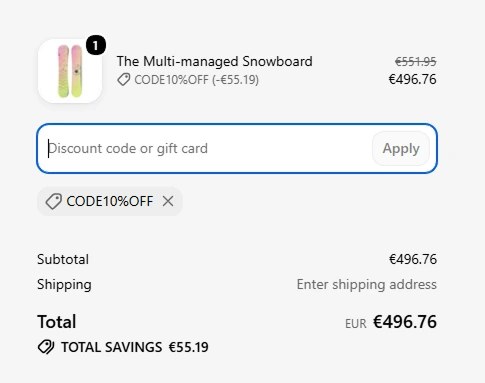
Visitors who arrive on your storefront without seeing the email are the harder group. Shopify has nothing that shows a code on the site itself, so the usual answer is a banner across the top of the store.
Editing or ending a code later
Open the discount from the Discounts list and change what you need — the value, the dates, the limits, the code itself. The only thing Shopify will not let you change is the kind of offer you picked in step 2. Shopify can also duplicate a discount, which is the quickest way to run the same offer again next season.
To stop a code, you can deactivate it, which keeps the discount and its history, or delete it, which removes the discount from the list. Deactivating is usually the better choice, because your reports still show what the code did.
One habit is worth keeping. A code that is already in customers’ hands should not be edited: the change reaches everyone still holding that code, and somebody gets an offer different from the one you sent. If the terms need to change, make a new code and let the old one expire.
Discount code FAQ
How do I add a discount code in Shopify? Go to Discounts in your admin, click Create discount, and pick the kind of offer. Choose Discount code as the method, type the code, set the amount and what the discount applies to, then add any limits you want — a minimum purchase, a usage limit, and the dates. Click Save.
Where does the customer enter the code? At checkout, in the field Shopify also uses for gift cards. Some themes add a discount field to the cart page as well, but not all of them do. You can avoid the typing by sharing the discount as a link or a QR code instead.
Can I change a discount code after I have created it? Yes. You can edit the code, the value, the limits and the dates at any time. The one setting you cannot change is the kind of offer, chosen when you created the discount.
Are Shopify discount codes case sensitive?
No. A customer who types summer10 instead of SUMMER10 still gets the discount.
How do I make a code for a customer’s first order only? Shopify has no first-order setting. Create a customer segment of people who have not placed an order, and choose that segment under customer eligibility. The customer needs to be signed in for Shopify to recognise them, so say so in the email you send.
Can a customer use two codes on the same order? Only if you allow it. Each discount has a Combinations section that says which other discounts it can be used with, and both discounts have to allow the combination. Up to five product or order codes plus one shipping code can apply to the same order.
Can I set a maximum amount on a percentage discount? Not in Shopify. A 25% code takes 25% of whatever the cart is worth. If you need a cap — 25% off, up to $50 — you either use a fixed sum instead, or an app that can set the ceiling for you.
How many discount codes can I create? As many as you need. The store-wide limit is 20 million codes, so it is not something you will run into.
Setting up a discount code on Shopify is the easy part, and the screen above covers almost every offer a small store runs. The harder questions come next: which kind of discount suits which offer, how to aim a discount at exactly the right products, and whether the promotion made money in the end. Those are in our complete guide to Shopify discounts.
If you need something the screen does not have — a ceiling on a percentage, discounts aimed at a vendor or a tag, or coupons that stay off your sale prices — Alpha Sale adds those to your store. There is a free plan to try it on your next campaign, and you can also read the reviews on the Shopify App Store.