
Most Shopify stores run a sale and discount codes at the same time. Some products are reduced with crossed-out prices, while customers still have a welcome code from your signup email, a code an influencer shared or a code from last month’s newsletter.
If this is the case, you might want the coupon codes to work on full-price products and stay off your sale and clearance items, but Shopify does not give you the tools: by default, a code applies to sale items on top of their reduced price.
This guide shows how to stop customers using coupons on sale items in Shopify, what to do with the codes you have already sent, and how to tell customers about the rules so that nobody is surprised at checkout.
Why the Combinations setting does not stop the code
Every discount you create under the Discounts section in the Shopify admin has a Combinations section, so it is natural to look there first. The problem is that Shopify does not count a sale made with compare-at prices as a discount. As Shopify’s help centre puts it, “Discounts are different from sale pricing with compare-at prices.” For Shopify, the reduced price is simply the product’s price now.
That is why, when a customer adds a sale item to the cart and enters a code, Shopify sees only one discount, and the Combinations setting has nothing to block. The coupon code adds its discount on top of the sale price. Here is what that means for a $120 jacket:
| Price | |
|---|---|
| Regular price (compare-at) | $120.00 |
| Sale price, 30% off | $84.00 |
| After a 20% code on top of the sale price | $67.20 |
The customer pays $67.20 instead of $120, which is $52.80 or 44% off — a cut into your margin that you might not have planned for.
Exclude sale items from a discount code in Shopify
Shopify has no setting that excludes sale items from a code (and, overall, no way to exclude products from coupons), but a collection can select items by their compare-at price. So the workaround is to build a collection of items that are not on sale and limit the code to that collection instead of all products.
Build a collection of variants without a compare-at price
- In your Shopify admin, go to Products → Collections and click Add collection.
- Give the collection a name, for example “Not on sale”. Customers do not need to see this collection, so you do not have to add it to your store’s menu.
- In the panel on the right, switch the source from Products to Variants.
- Click Add condition, choose Compare at price and is not set, and click Save.
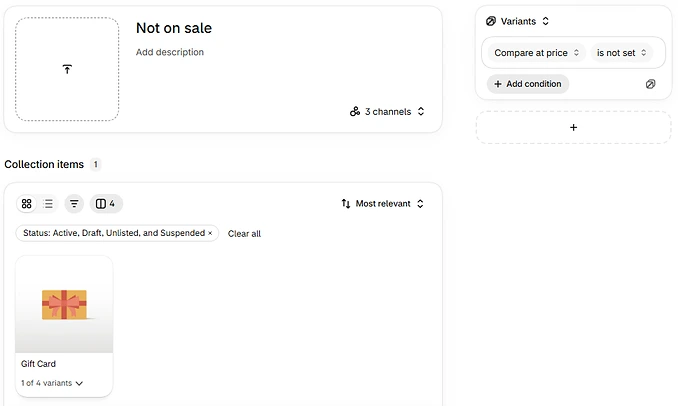
Shopify then adds every variant without a compare-at price to the collection and keeps the list up to date for you. Each size and colour is checked separately: if only size XL of a hoodie is on sale, the other sizes are in the collection and the XL is not. When you put an item on sale, the item leaves the collection, and when the sale ends and you clear the compare-at price, the item comes back.
Limit the code to that collection
Now open the discount code (here’s how to create one if you are starting from scratch), go to Applies to, choose Specific collections and add your “Not on sale” collection.
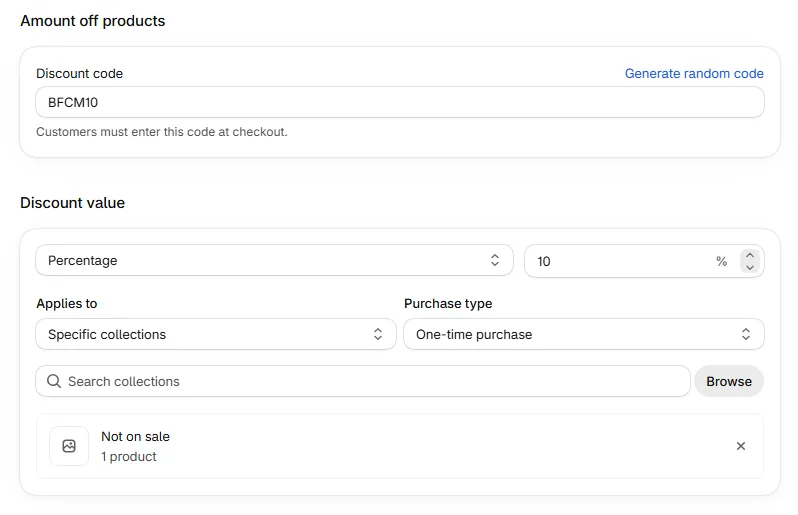
This works for codes you created earlier too, because Shopify lets you edit everything on a saved code except the discount type. From now on, the code skips sale items but still works on the rest of the cart. If a customer has the sale jacket at $84 and a full-price shirt at $50 in the cart, the 20% code takes $10 off the shirt, while the jacket stays at $84.
For more on how Shopify decides which discounts work together, see when Shopify discounts combine and when they do not in our guide to Shopify discounts.
Handle the codes you have already sent out
The collection method has one weak spot: the rule lives inside each code, so every code has to be edited. With five codes, that takes ten minutes. With hundreds of welcome codes, codes created by an email or influencer app, or old order codes that cannot be limited at all, editing code by code is not realistic, and you need a rule that works at checkout instead.
Block the code at checkout when the cart has a sale item
Shopify has no setting that rejects a code because of what is in the cart, but an app can do this.
Keep in mind that a blocking rule works on the whole order, not on single items, because this is how Shopify lets apps reject codes. So with the sale jacket and the $50 shirt in the cart, the customer gets no discount at all, rather than $10 off the shirt.
Give the customer the bigger discount instead of both
Blocking is not the only fair answer. A customer who applies a 20% code to a product with a 10%-off sale price may feel cheated when the code does nothing at all. So another option to consider is to let the two discounts compete, so that the customer gets whichever is bigger, but never both.
Here, we again face the same limitation in Shopify: since adding a compare-at price is not considered a discount, Shopify cannot compare a coupon code value with a compare-at price-based discount. This also needs an app.
Tell customers before they reach checkout
A code that fails at checkout without a reason looks broken, and a customer who thinks your code is broken may leave instead of asking.
That is why you need to take your time to explain the rules to your customers. The information should appear wherever it fits: in the welcome email, in the announcement bar and in the brief you give influencers.
If you use Alpha Sale’s blocking rule, you can write the checkout message yourself, so you can give the reasoning there too.
Discount codes on sale items FAQ
Can Shopify exclude sale items from a discount code without an app? Not with a setting. The workaround is a collection with a Variants source and the condition Compare at price · is not set, chosen under Applies to on each code. It works for Amount off products codes.
Why does my code still apply on top of the sale price when it is set not to combine? Because Shopify does not treat a compare-at price as a discount. The Combinations setting controls how discounts work together, and since a sale price is not a discount for Shopify, the code applies to the reduced price.
Can I keep automatic discounts off sale items too? Yes, you can exclude sale items from an automatic discount, but you cannot block it. An Amount off products automatic discount has the same Applies to field as a code, so you can limit it to the same “Not on sale” collection. Blocking rules, however, work only for codes: Shopify does not let apps reject automatic discounts. Automatic discounts created in Alpha Sale can also exclude items already on sale, with the same setting as Alpha Sale codes.
In Shopify, a sale price and a discount code are two separate decisions, and nothing connects them unless you do. So for every code, decide whether the customer gets the sale, the code or the bigger of the two, and say so wherever customers see the code.
If you have more codes than you can edit by hand, Alpha Sale can block them on sale items at checkout or give the customer only the bigger discount. You can also read the reviews on the Shopify App Store.